Generating a SSH key
Authentication requires an SSH key pair. A key pair has two parts:
A private part (keep this very safe)
A public part (give this to COSMA/SAFE)
ssh uses the public key to generate a “challenge”, an encrypted
message. Only the private key can decode this. Your computer then
sends the correct response to COSMA, and access is then granted.
Unix systems
On Linux or a Mac you can generate a key pair using:
ssh-keygen -t ed25519 -C "unique name to identify this key." (e.g. -C cosmaKey)
or, if that fails (e.g. if you have an old client)
ssh-keygen -t rsa -b 4096 -C cosmaKey
This will ask for a passphrase: PLEASE use a strong one, as the use of a user with a weak passphrase was responsible for the hacking of HPC systems across Europe, China and the USA in 2020. Something like 16 characters would be good (perhaps several words strung together).
It will also ask for a location. You can use the default, or something else, e.g. ~/.ssh/id_rsa_cosma.
This will create:
id_ed25519 - the private part. Keep this safe, and consider where it is backed up to (e.g. don’t back it up to the “cloud” if the cloud is an untrusted provider or could be hacked), and don’t copy it to other systems. Also NEVER send it by email anywhere.
id_ed25519.pub - the public part. Upload this to SAFE.
SSH from Android
On Android, use e.g. JuiceSSH. You will need to generate a key pair on the app.
SSH on Windows
SSH on Windows can be problematic, as there are various different ways of doing it, and not all of them seem to work reliably - with key formats differing between them.
The best option is to use WSL: Windows Subsystem for Linux.
SSH using WSL
First, you need to install WSL: Open a cmd prompt (start menu, type “cmd”). Here, enter wsl --install. This will download some stuff, do some installation, and eventually ask you to reboot.
After a reboot, you should then see a wsl ubuntu option in the start menu - use this - it will start ubuntu, ask you to create a user (give it whatever username you like). From here, you then have a Unix-style command line, and can follow the instructions above for Unix systems.
SSH using cmd
Windows 10 and 11 include the ssh-keygen utility, so keys can be generated as described here.
In summary:
Hit the windows key, and type “cmd”
In the cmd window type
ssh-keygen -t ed25519 -C "cosmakey"Hit return for the default options (key filename, etc), and enter a passphrase (twice) when requested.
The key will be in a .ssh folder. You need to upload this to SAFE, select login accounts -> COSMA, and then the “Add credential” button. Upload the public part (.pub), which will probably try to identify itself as a Microsoft Publisher file (it isn’t).
Once you have a welcome email from cosma, try: ssh USERNAME@login.cosma.dur.ac.uk
It should ask for you key passphrase. It will then ask for your COSMA password, which will be in the welcome email. You will need to enter this twice: once to login and then once to start the password change.
Enter a new password twice.
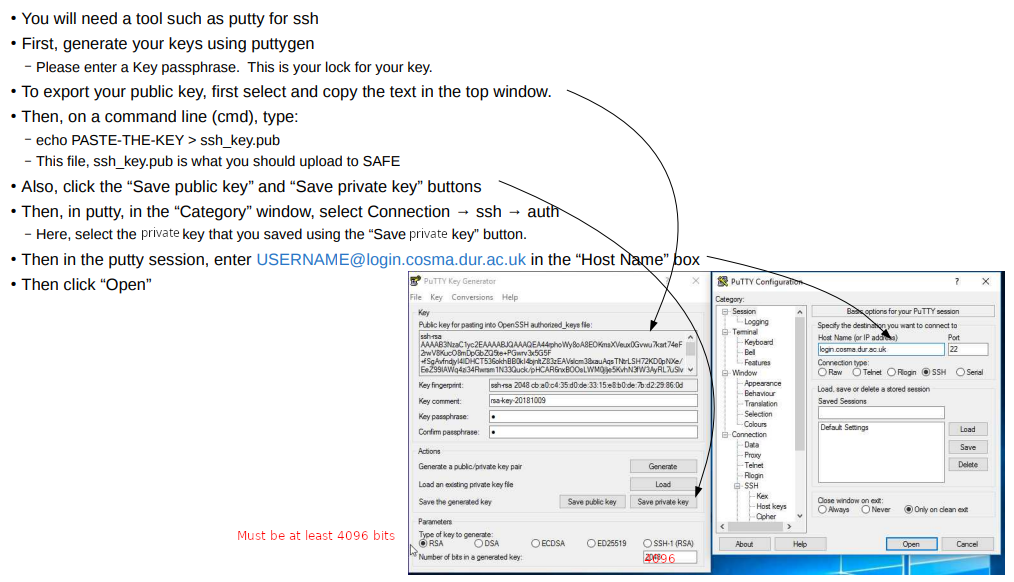
SSH using other Windows options
Alternatively a tool such Putty and Putty-gen will be required, as shown in the image below. However, we often fail to get putty working, so you are much better using WSL or the cmd utility. Basically, don’t use this method.